Please help. Still can not connect my Cloud Access, Connection Status: Failed
Already set the those ports.
- UPnP Already enabled.
Please help. Still can not connect my Cloud Access, Connection Status: Failed
Already set the those ports.
As asked in the other thread you were posting in:
What is the make and model of your router?
Typically if the manual port setting fails in the My Cloud it tries to roll back to using a relay connection.
If both the auto setting and the manual settings are failing that indicates there may be some other issue at play.
Has anything changed on your local network recently?
Have you added another router or AP point?
Are you using a Mesh network?
Are you using a Powerline adapter or similar to extend Ethernet access to the My Cloud?
Who is the broadband provider?
UPnP should be disabled when using port forwarding/manual setting in the My Cloud Dashboard > Settings.
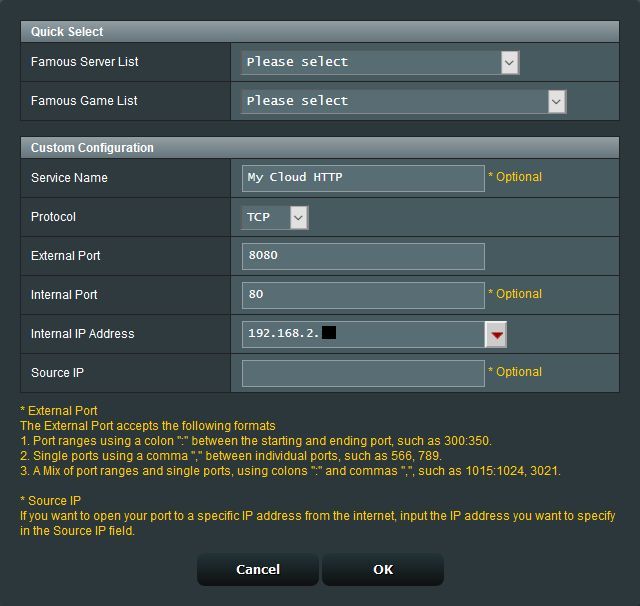
Here is how I have port forwarding setup on a first gen (v4.x) single bay My Cloud and on an Asus RT-AC68U router (when I use the port forwarding option). The My Cloud is connected to the Asus router via Ethernet cable, and the Asus router is connected to the broadband router/modem via Ethernet router. The broadband router/modem is configured (as best as it can be) for bridge mode.
On the Asus router, UPnP is disabled.
On the Asus router on the Virtual Server / Port Forwarding page, Enable Port Forwarding is set to ON.
Next the two port forwarding entries are created and then saved. In the past using the same port number (example: 8080 and 4443) for both the External and Internal ports worked (at least for me). Currently however it doesn’t work, instead I have to use the the port values (example: 8080 and 4443) for the External ports and ports 80 and 443 for the Internal ports. The Internal IP Address is the IP address of the My Cloud.
End result looks like this:
On the My Cloud, one sets the My Cloud Dashboard > Settings > General > Cloud Access > Remote Access > Configure from Auto to Manual. Then input alternate ports from the default 80 and 443. Example: 8080 and 4443.
If a successful port forwarding connection is made (after saving the changes) one should see it indicated in the Connection Status section.
One suggestion. Make sure the My Cloud has a fixed or reserved IP address to avoid potential issues if the My Cloud obtains a different IP address. One can typically reserve an IP address for the My Cloud within their router’s administration page. Or they can manually set a static IP on the My Cloud Dashboard > Settings > Network > Network Services > Network Mode option.
This post in the EX2 forum is similar with respect to setting up port forwarding.