@Bennor Chose Firmware version 2.42.115, loaded it, applied it, when 100% progress reached, a popup window appeared saying it is rebooting. After the reboot, I got blinking blue light, and then after about 5 minutes, a solid blue light.
I am now trying to figure out the password to get? What is the username & password?
If you are asked for a password, try leaving it blank. If that doesn’t work then try performing 4 second pin reset which should reset the username and and password to default.
The 4 Second Reset will only reset the Admin Password.
It will not reset the Admin User Name if it has been changed to from the default name admin.
Use 40 Second Reset to reset the Admin User Name.
If a 4 second pin reset doesn’t work, perform a 40 second pin reset (see link above for more information).
LevelTime and DateTypeLogs
2024 Dec 6 08:05:09
SYSTEM
admin logged in.
2024 Dec 6 07:54:55
OTHER
/data/workspace/workspace/wdmcserver_stable/src/wdphotodbmerger/NotificationListener.cpp:137: Calling ReadMessage()
2024 Dec 6 07:54:55
OTHER
/data/workspace/workspace/wdmcserver_stable/src/wdphotodbmerger/NotificationListener.cpp:130: Creating the notification socket /tmp/WDMCNotification.socket
2024 Dec 6 07:54:38
SYSTEM
System is rebooted or power up successfully.
2024 Dec 6 07:54:38
OTHER
Set check central server at 21:35
2024 Dec 6 07:53:27
RTC
Set System Time.
2024 Dec 6 07:53:22
OTHER
2024-12-06 07:53:22.257413 (+0800) +0.501576 +/- 0.358620 time.windows.com 40.119.6.228 s3
2024 Dec 6 07:53:22
OTHER
sntp 4.2.8@1.3265 Fri Jan 9 06:42:54 UTC 2015 (8)
2024 Dec 6 07:53:22
SYSTEM
Firmware Version : 2.42.115
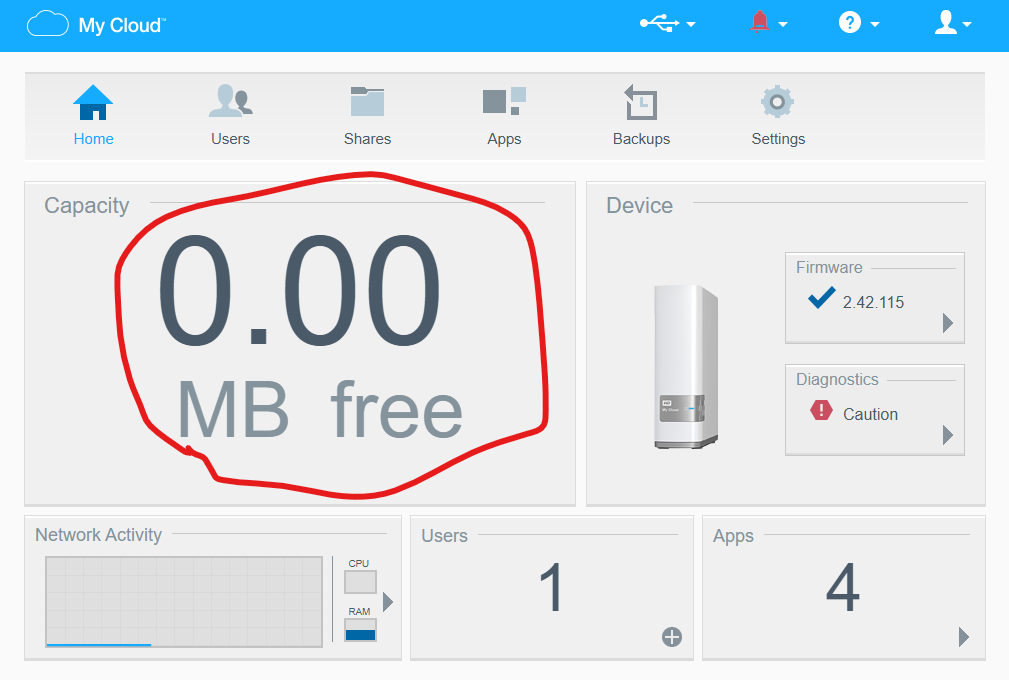
The 0.00 capacity is a common problem. Search the forum to see if there are any suggestions that worked to fix it. At the very least perform a 40 second pin reset if you haven’t done so already, or perform System Only reset through the My Cloud Dashboard > Settings > Utilities section.
@Bennor
And if you remember in Post #17, I mentioned the warning:
I restarted the whole process again from step 5 via telnet, everything went well up to “mkpart primary 8591MB -1MB”, it produced the following:
Issue 1 - Warning

(parted) mkpart primary 8591MB -1MB
mkpart primary 8591MB -1MB
*Warning: The resulting partition is not properly aligned for best performance.*
*Ignore/Cancel?*

*Ignore/Cancel? ignore*
ignore
I clicked ignore. I don’t know what this warning might cause in the future. I am thinking, if and when I am logged into the dashboard, it gives me a chance to reformat!
Do you think this warning, might have caused the 0.00 space issue? I click to ignore at that time.
I assume you could restart the process with USB. The firmware version will be what ever version you upload to the My Cloud when using the Safe Mode firmware upload page.
Not sure why you are having so many problems trying to unbrick the drive. Seems like somewhere along the way a command or step is being missed.
PS: Also you may want to review the following thread discussion that is mentioned in the Unbricking_en.txt linked above if you haven’t done so already. May have some additional suggestions or information.
Also, I mentioned before, when making
mkpart primary 8591MB -1MB
It prompted the following warning. Could this have caused this? Warning: The resulting partition is not properly aligned for best performance.
Ignore/Cancel?
Use the exact values regardless of disk capacity/size. Generally what should happen if things are successfully unbricked is one should perform a 40 second pin reset and the system should resize the user data partition to expand to use the full remaining capacity of the drive regardless of total hard drive capacity/size. What this entire process is doing is setting up the partitions in a certain order and size that the My Cloud OS expects.
No what I was suggesting is the slightly different mkpart directions from another thread topic were a way to avoid the “Warning: The resulting partition is not properly aligned for best performance” when one is doing the unbrick method and prepping the hard drive’s partitions.
If you can already access the My Cloud Dashboard but are seeing the “0.00 MB free” message see if the following WD Support article provides any suggestions or fixes:


 The 4 Second Reset will only reset the Admin Password.